A video backdrop — your page comes alive instantly

Set a YouTube or Vimeo video as your Choko page background: no player controls, just atmosphere for your brand.

Plus Free

A background video adds motion and mood before the first click. It can be a concert shot, a behind-the-scenes clip from your studio, a cafe interior, your work process or a short brand video. Choko.Link embeds it as a quiet background layer: the content stays primary, while the video supports the atmosphere.
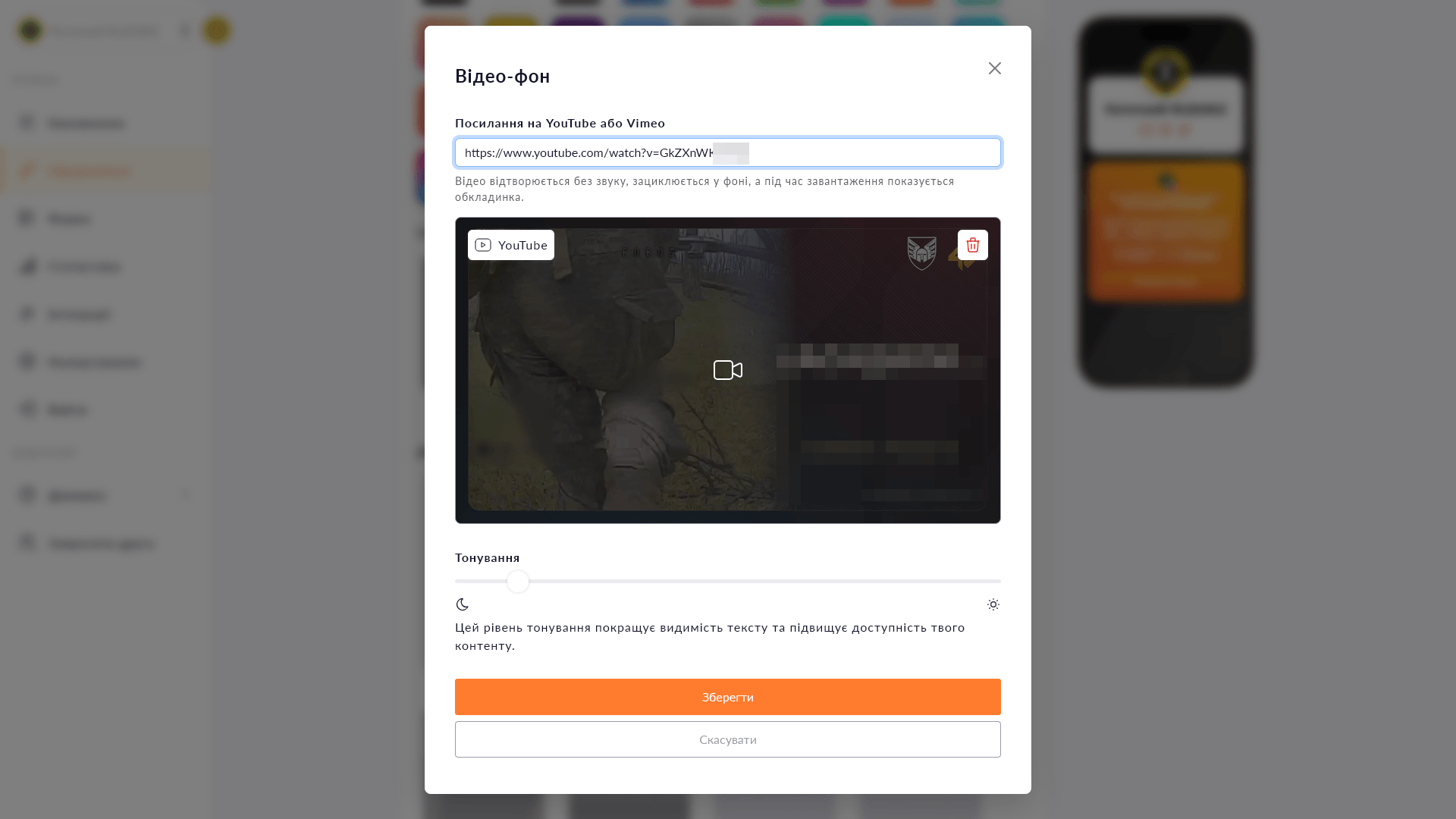
Background video options in Choko.Link — the leading link-in-bio service for personalization
Background video options in Choko.Link

How background video works

  1. YouTube and Vimeo
    Paste a video link — Choko.Link prepares it for background playback automatically.
  2. No player UI
    No buttons, timeline or recommendations on the page — only background motion.
  3. Muted autoplay
    The video starts muted and loops when the visitor's browser allows it.
  4. Tint for readability
    Add a dark or colored overlay so text and buttons stay easy to read.
  5. Screen-aware fit
    The video scales like a background and crops cleanly on both mobile and desktop screens.
  6. Reduced-motion friendly
    If a visitor has reduced motion enabled, the background video is not forced on them.

How to add a background video

  1. 1. Make sure you have an active Plus plan.
  2. 2. Open the editor → go to 'Design' → 'Background'.
  3. 3. In the background media section, choose video and paste a YouTube or Vimeo link.
  4. 4. Adjust the tint if needed and save — the video becomes your page background.

Who it's for

Try Plus — and unlock this feature

Start for free, upgrade whenever you need more.

Create a page for free

Sign up in 30 seconds • No card needed

Questions & Answers

Available on the Plus plan. YouTube and Vimeo are supported. Paste a video link, and Choko.Link displays it as a background video. No. Background video plays muted so it does not interrupt visitors and stays compatible with browser autoplay rules. Yes. The layer order is: gradient → video → image → dynamic background. If the background image has transparency, it can work as an overlay on top of the video.

You might also like

Embedded media

Add video or music directly to your Choko page: YouTube, Vimeo, Spotify and SoundCloud. Followers watch and listen without leaving your bio.

Background image

Set your own photo as the background of your Choko page. A unique look that expresses your brand — available on the Plus plan.

Animated background

Add a dynamic background to your Choko page: waves, rays, bubbles, squares, Tron or grain. A live effect with no code.

Page fonts

Pick a font for your Choko page heading and body text from a selection of 10+ typefaces. Typography that matches your style.

Button styles

Customize buttons on your Choko page: solid fill or outline, corner radius, shadow and colors. Each button individually.

Hero avatar

The hero avatar spans the full container width on your Choko page and blends smoothly into the background. A striking first impression for your bio.